✨ New Update: Access MAGgie™ Your Way
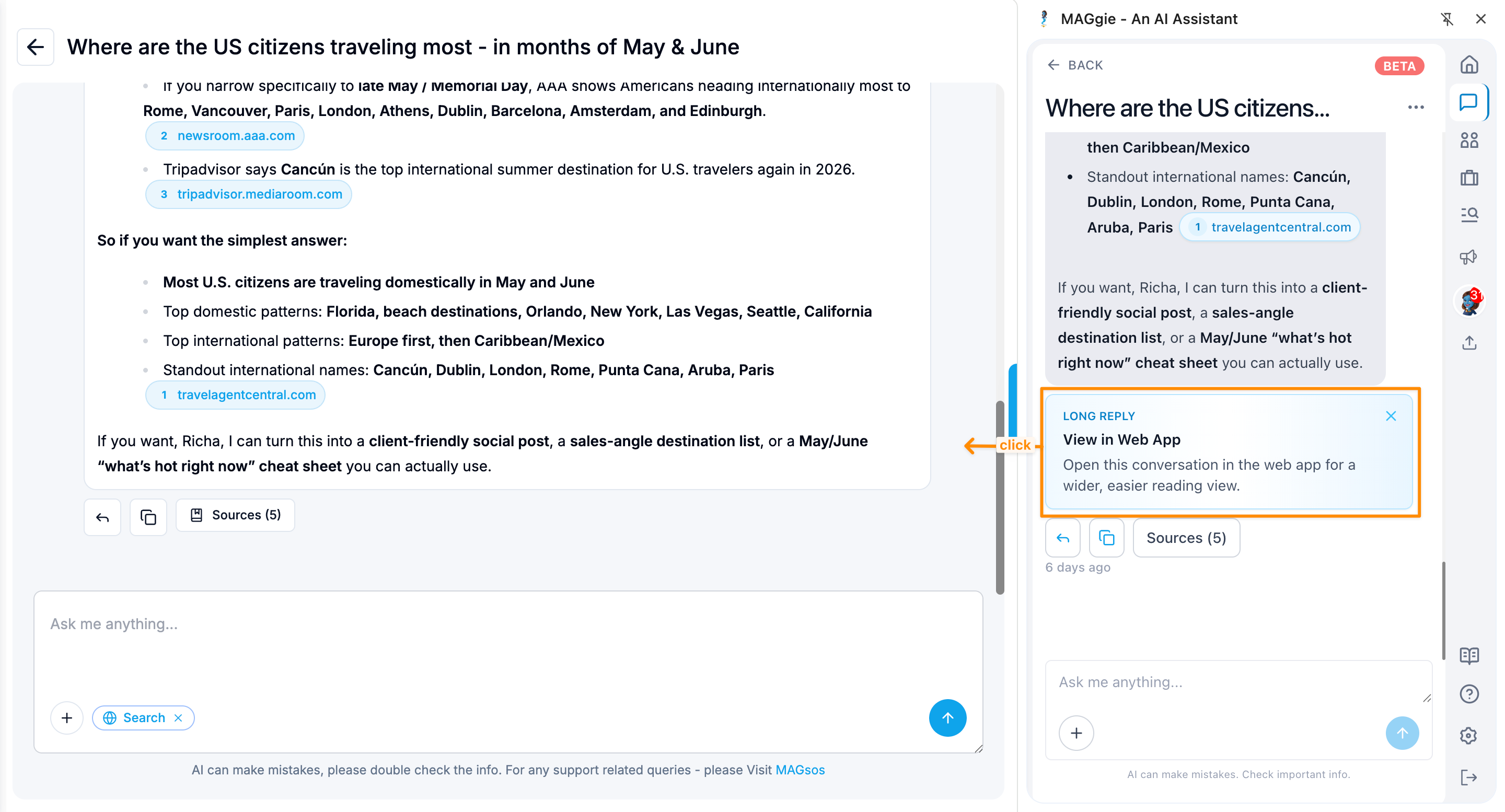
We've introduced a new MAGgie™ Floating Icon that provides quick access while you browse and work. Once enabled, the floating icon appears along the right-hand edge of your screen, keeping MAGgie™ within easy reach whenever you need assistance.
✅ Enable the MAGgie™ Floating Icon
To turn on the floating icon:
Open the MAGgie™ Chrome Extension.
Click Settings.
Find the Floating Icon setting.
Turn the toggle on.
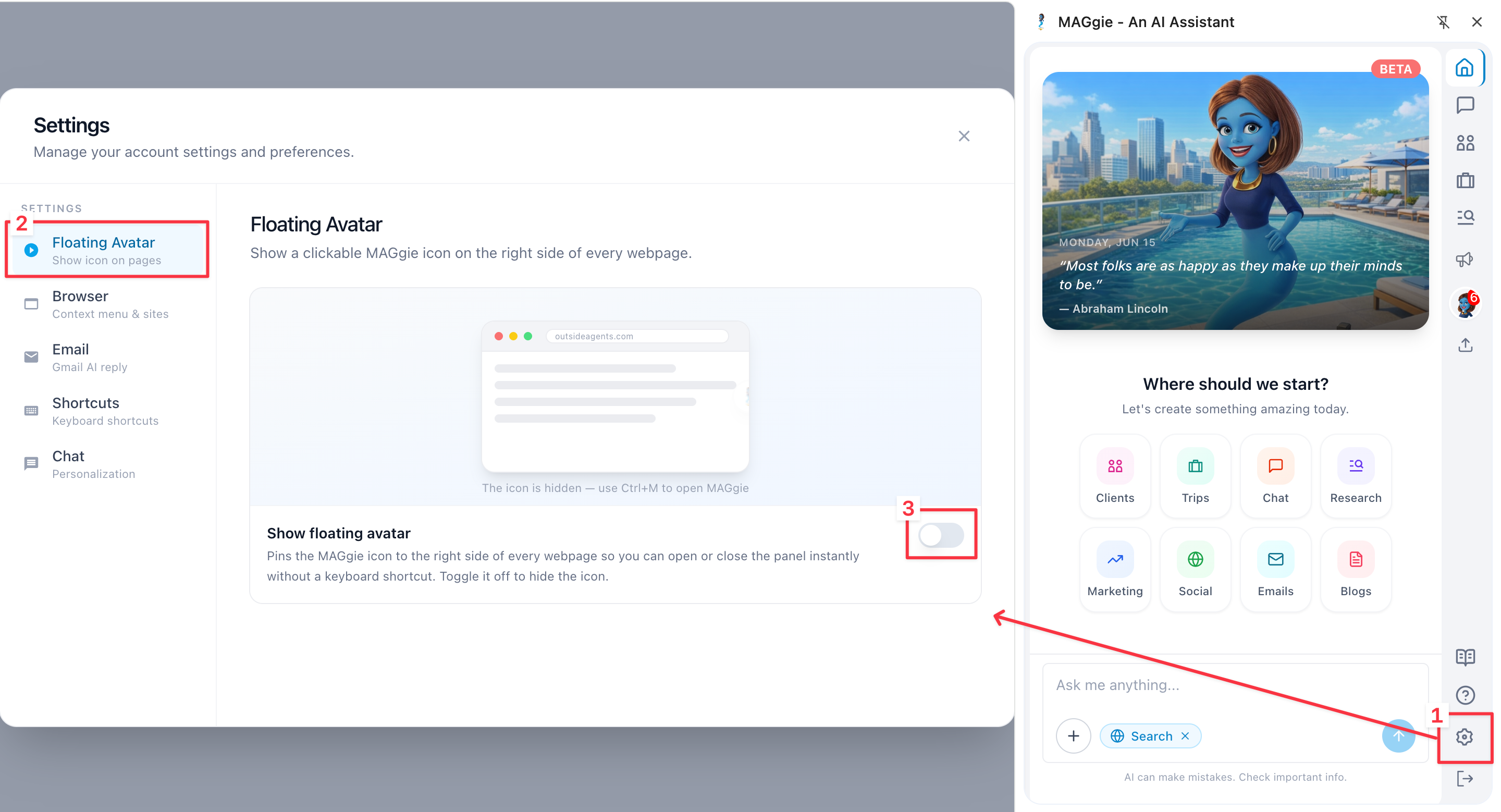
Once enabled, the MAGgie™ Floating Icon will be available whenever you need it.
Manage the Floating Icon
You can choose when and where the floating icon appears by managing it directly from your screen.
Hover over the MAGgie™ pop-up on your screen.
Click the Dismiss (X) button.
Choose one of the following options:
Hide until next visit – the pop-up stays hidden for the rest of your current session.
Disable for this site – the pop-up won't appear on the current website.
Turn off MAGgie™ globally – the pop-up won't appear on any site.
Once you make a selection, MAGgie™ will remain hidden according to your preference. You can re-enable the floating icon at any time from the MAGgie™ Chrome Extension Settings.

This update makes MAGgie™ easier to manage, giving you quick access when you need it and letting you stay focused when you don't.